On this page
- Step 1: Give the Sheet the Lists the Assistant Does Not Have
- Step 2: Put the Lists in a Claude Project and Attach the Morning's Emails
- Step 3: Ask for Twenty Fixed Columns, and Forbid the Guess
- Step 4: Count the Rows Before You Paste Them
- Step 5: Paste the Rows and Let the Checks Sort Them
- Step 6: Settle Each Stopped Line by Its Reason
- Step 7: Let the Assistant Draft the Reply, and Send It Yourself
- Step 8: Run the Next Morning on the Same Sheet, Because the Chat Starts Empty
- Step 9: Time One Real Morning Both Ways Before You Automate It
- Step 10: Let Each New Email Start the Run
- What Qvery Builds When Your Clients Email Their Orders
- Start With the Client Who Sends Your Worst Orders
- Frequently asked questions
Clients send orders the way it suits them: a retailer's purchase order forwarded as a PDF, their own spreadsheet with their own column names, three lines typed into an email, now and then a fax.
Somebody on your order desk keys each one into the sheet the floor picks from, line by line, and the morning grows with the inbox.
The lines that cost money look like every other line: thirty units of an item packed twelve to a case, a style number the client does not carry, a cancel date already past.
Shipped, they become a broken case, a retailer's chargeback or refused freight, or last week's order sent twice.
By hand, that means opening every email and attachment and checking each line against the item list and the ship-to list from memory.
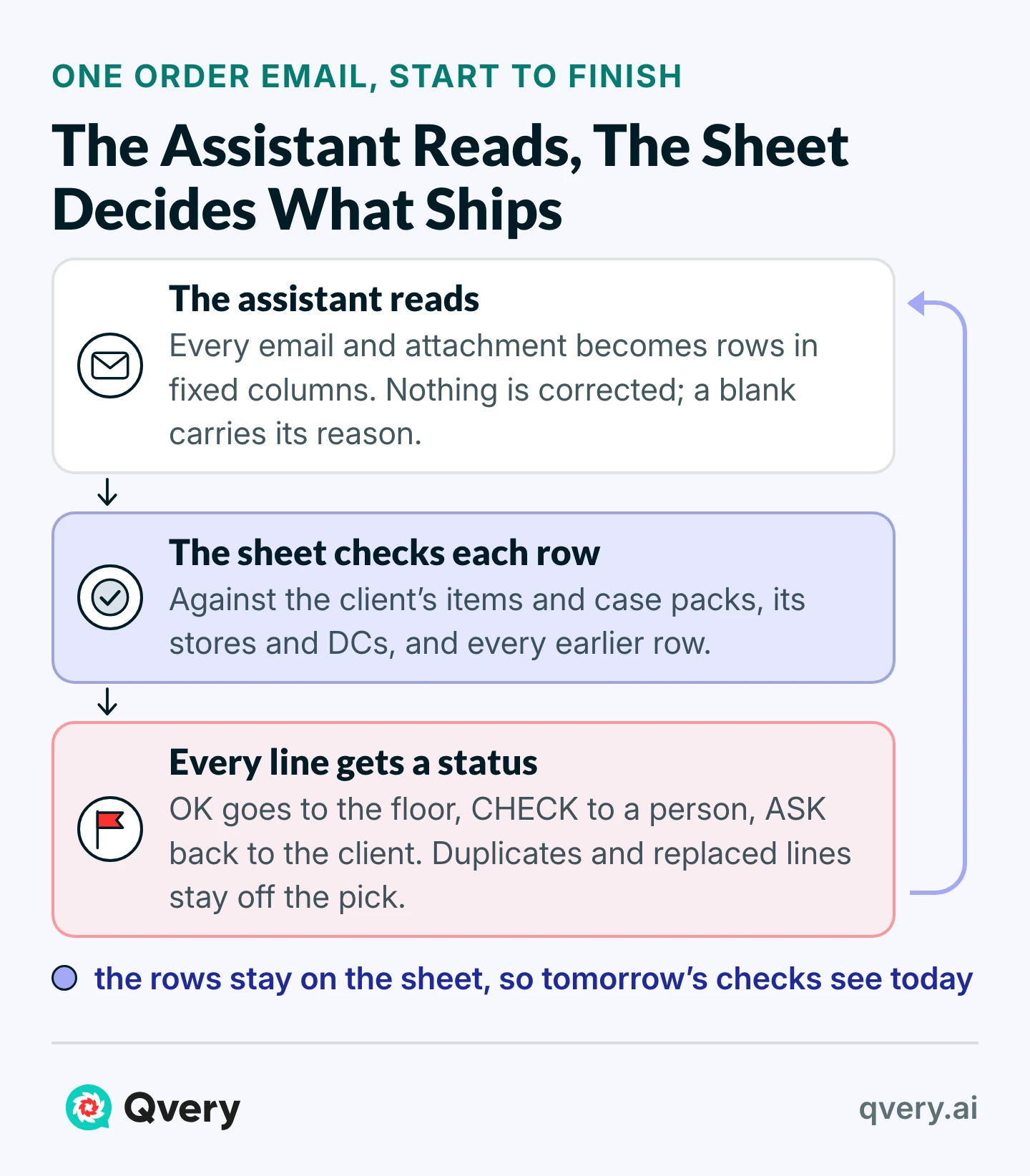
An AI assistant does the reading in one pass now, and it reads well. What it does not do on its own is apply your rules to every line, every morning.
We ran it on an invented Monday at an invented 3PL we called Pellmore Fulfillment: eleven emails from four clients, most of the trouble planted on purpose, an answer key written before the first run, and a Google Sheet that computed every status.
This page builds that sheet by hand: the prompt that fills it, the checks that sort it, and the reply that asks clients for what they left out. After the steps comes the agent Qvery builds to do the same reading and checking from your inbox every morning, on autopilot.
The desk's work changes from keying every line to settling the lines that stop, and Step 9 prices that on your own morning. If most of your orders already arrive by EDI or through a portal, this is for the rest of them.
This covers orders that arrive by email. It does not set up EDI, connect the sheet to your WMS, or check prices and credit.
Step 1: Give the Sheet the Lists the Assistant Does Not Have
Every check in this tutorial compares a line with something you already know. Build one Google Sheet with four tabs.
| Tab | Columns | What it lets the sheet stop |
|---|---|---|
| Items | Client, SKU, Description, Case pack, Buyer, Buyer item no. | Items the client does not carry, SKUs that contradict the buyer's number, broken cases |
| Ship-To | Client, Code, Name, Address | A store or DC you have never shipped to for that client |
| Senders | Sender domain, Client | Nothing by itself: it tells every other check whose order it is |
| Orders | The 20 columns the assistant returns, two empty columns, then the checks | Everything else, against every earlier morning |
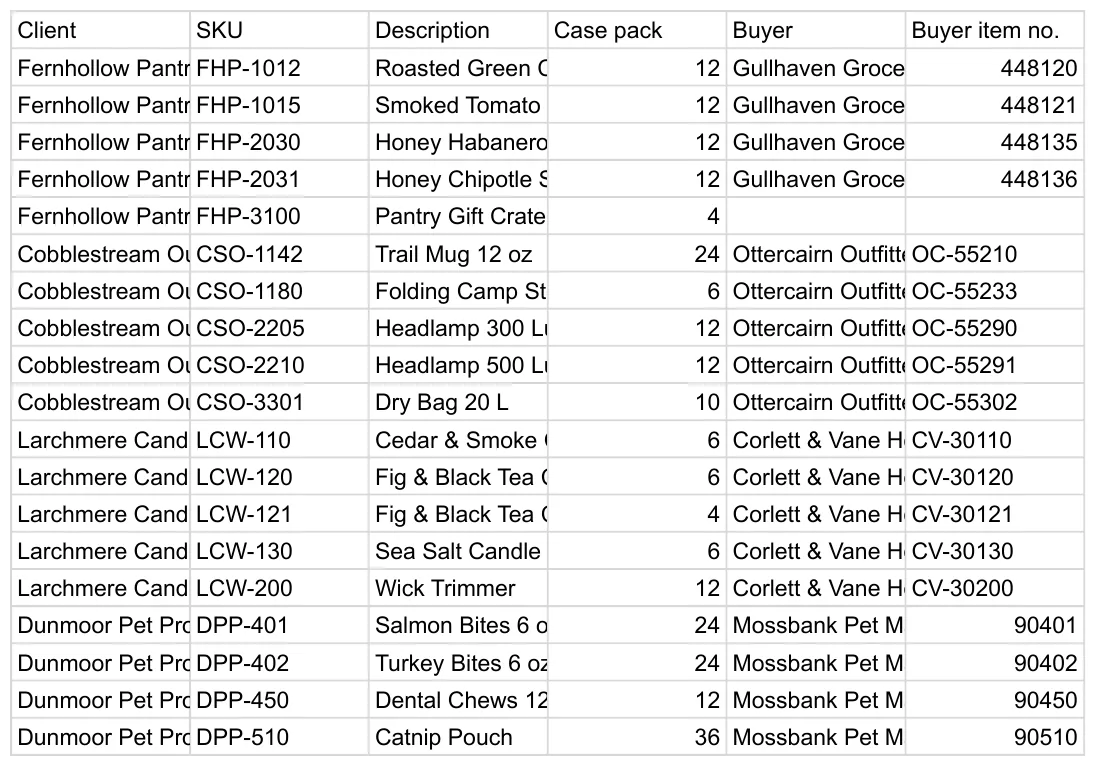
The case pack is the number of units in the carton you pick. Retail POs often print an inner pack beside it, a smaller bundle inside the case.
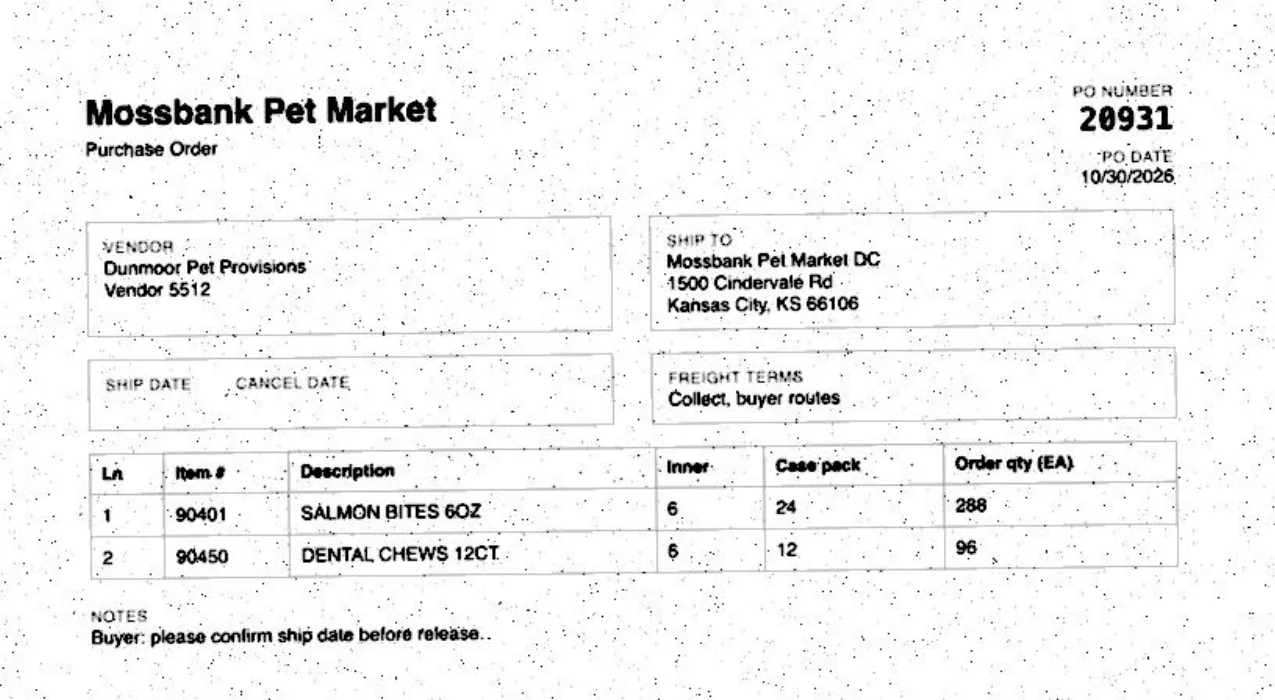
Our sample's pet-food retailer printed an inner pack of 6 next to a case pack of 24. Put the case pack in the list, because a quantity divided by the wrong one looks fine and ships wrong.
The buyer item number is the retailer's own code for your client's product. A retailer PO prints it on every line and prints your client's SKU only sometimes, so the list lets the sheet confirm one against the other.
Keep every earlier morning's rows at the top of Orders. They are the sheet's memory, and Step 8 shows what they catch that no chat can.
Step 2: Put the Lists in a Claude Project and Attach the Morning's Emails
Eight of our eleven emails carried the order as an attachment, and Claude's Gmail connector reads attachment metadata, not attachment content. So the first run attaches the files themselves.
Create a project
in Claude and add
items.csvandship-to.csvto its knowledge with the + button on the project page.In Gmail, open each order email
, click More at the top right of the email, then Print, and save it as a PDF from the print window. Download its attachments.
Start a new chat inside the project
, click + in the lower left, choose Add files or photos, and attach the morning's PDFs, spreadsheets and photos.
Claude takes up to 20 files per chat. Our Monday was 19, and the two lists would have made 21, so the lists live in the project.
We ran the extraction in Claude Code and once with OpenAI's model in Codex, so the app's buttons above come from Anthropic's help pages, not a session of ours.
Check before you send: the number of files in the chat equals the emails plus their attachments.
Step 3: Ask for Twenty Fixed Columns, and Forbid the Guess
Our first prompt was one line, asking for every order in one table we could paste into the sheet. The assistant noticed most of the planted problems and listed them under its table, and it also wrote its guesses into the data.
| What it wrote | Where | What that does to the order |
|---|---|---|
| "LCW-120 or LCW-121" | SKU | A pick list cannot pick "or" |
| "30 or 20" | Quantity | The floor picks one number |
| CSO-3301 where the client wrote CSO-3310 | SKU, with the change in a note | The client's number is gone from the line that ships |
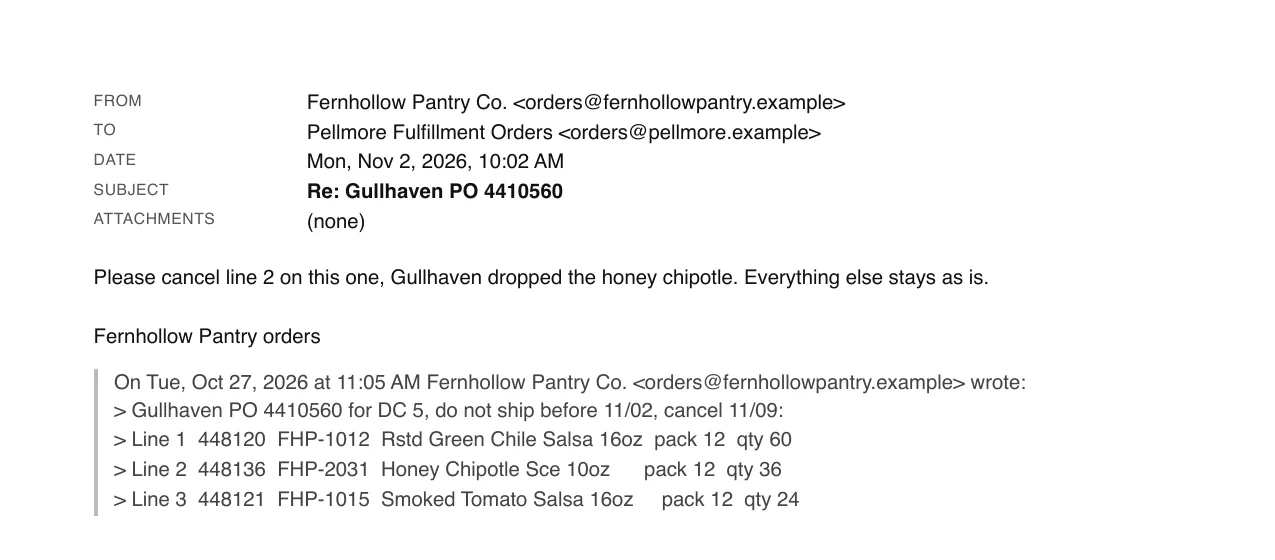
| Last week's PO 4410560, rebuilt from a quoted reply | Two new rows | Paste them and last week's order ships twice |
| "Not before 11/09/2026; cancel if not shipped by 11/16/2026" | One column | No formula can compare a sentence |
The prompt below names twenty columns and gives each one a rule. Paste it as the first message of the chat.
Attached are this morning's order emails, each saved as a PDF, with their attachments, plus our item list (items.csv) and our ship-to list (ship-to.csv).

Read every email and attachment and return one table of order lines, tab-separated, with a header row and exactly these columns:

Received | From | Action | PO | Rev | Line | Item as printed | SKU | Description | Qty | Unit | Ship to | Ship not before | Ship by | Deliver by | Cancel after | Notes | Source | Missing | Confidence

Rules:
- One row per order line. An email that is not an order gets one row: its Received, From and Source, Action NOT AN ORDER, the rest blank.
- Action is NEW for a new order, REVISION for a changed PO that replaces an earlier one, CANCEL for a request to cancel a line (one row per cancelled line), NOT AN ORDER for anything else.
- Copy every number exactly as printed. Never correct a PO number, an item number, a quantity or a date, even when it looks wrong.
- Item as printed: the buyer's item number if there is one, otherwise the words the customer used.
- SKU: the supplier's SKU if it is printed. If only the buyer's item number is printed, look it up in items.csv. If the customer names the item in words, fill the SKU only when exactly one item in items.csv fits; otherwise leave it blank and say why in Missing.
- Qty and Unit: as printed. Write EA for units, eaches or pieces, and CS for cases or cartons. Do not convert between them.
- Ship to: the Code from ship-to.csv when the PO names one of those locations (the same store or DC number). Otherwise copy the address as printed.
- Dates as YYYY-MM-DD, each in the column that matches the PO's own wording (do not ship before, ship by, deliver by or in the store by, cancel after). If only the day is written ("by the 13th"), take the month and year from the email's date and say so in Notes. Leave a date blank when the PO does not state it at all. Never work one out.
- Rev: the revision number as printed. Blank if the PO shows none.
- Line: the line number as printed. If the lines are not numbered, number them in the order printed.
- Received and From: the email's date and time (YYYY-MM-DD HH:MM) and sender address.
- Notes: any instruction a person should see (a rush, an appointment, a cancellation, a substitution), in the customer's own words.
- Source: the file the line came from, or "email body".
- Missing: anything an order needs that the email and its attachments do not say (item, quantity, unit, ship-to, a date). Blank if nothing is missing.
- Confidence: high, medium or low, for how sure you are that the row matches the document.
- Quoted earlier messages in a reply are history. Do not turn them into new order lines.

Every row has exactly 20 cells separated by tabs: leave a cell empty rather than dropping or adding one, and never put a tab inside a cell.

Return only the table.
Here is part of what it returned, values as the assistant wrote them:
| PO and line | SKU and quantity | Ship to | Missing | Confidence |
|---|---|---|---|---|
| OC-88412, line 3 | CSO-2210, 30 EA | OC-DC1 | high | |
| OC-88412, line 4 | CSO-3310, 20 EA | OC-DC1 | SKU CSO-3310 is not in items.csv; items.csv lists CSO-3301 as Dry Bag 20 L. Number kept as printed, not corrected; confirm with customer. | low |
| CV-77815, line 2 | (blank), 5 CS | CV-114 | SKU: "fig candle" fits two items in items.csv, LCW-120 Fig & Black Tea Candle 8 oz and LCW-121 Fig & Black Tea Candle 14 oz 3-Wick; size not stated. | medium |
| 20931, line 1 | DPP-401, 288 EA | MB-DC1 | Ship date and cancel date (both fields blank on the PO). | medium |
| 20944, line 1 | DPP-402, 96 EA | Mossbank Pet Market Store 27 (new store), 88 Larkin Ave, Lawrence, KS 66044 | high |
Four of its rules are why this table can be checked and the first one could not:
Nothing is corrected
CSO-3310 stays CSO-3310, and the doubt goes in its own column.
A blank is allowed, with a reason
The fig candle has no SKU because two fit.
Each date keeps its meaning
"Do not ship before" and "cancel after" land in different columns.
Every email gets a row
, including the ones that are not orders.
In the first row, thirty headlamps of an item packed twelve to a case came back with no note and "high", and so did the last row, a store on no list. Confidence measured the reading, and the reading was right: nothing in the prompt asked it to judge the order.
Step 4: Count the Rows Before You Paste Them
| Check | What it should show | Our Monday |
|---|---|---|
| Every email has at least one row | As many different Received times as emails | 11 of 11 |
| Non-orders say so | NOT AN ORDER, with the file | The inventory question and the resent spreadsheet |
| Blanks carry a reason | Something in Missing wherever a field is empty | The fig candle; the fax's dates |
| No row is wider than 20 cells | Nothing spills past Confidence | 23 of 23 rows |
Our first prompt said "never work out a date", and the assistant left "in the store by the 13th" blank in an email sent on November 2. The sheet then asked the client for a date the client had given.
The prompt above takes the month and year from the email when only the day is written, and says so in Notes. Across a month end that fails safely: "by the 3rd" in a November 4 email became November 3, already past, so the sheet stopped it and a person read it as December.
OpenAI's model returned a table with extra cells on 15 of its rows. Every value after them moved right: cancel dates sat under Notes, a rush note under Source.
Pasted into our first sheet, those rows wrote over the first check columns, and 17 stopped as "item not on the client's list", almost none for the right reason. The two empty columns in Step 5 exist for this.
Step 5: Paste the Rows and Let the Checks Sort Them
Paste the table under the last row of Orders, in columns A to T. Leave U and V empty. The checks start in W, written for row 2 and filled down.
W2  Client
=IFERROR(VLOOKUP(REGEXEXTRACT(B2,"@(.+)$"),Senders!$A:$B,2,FALSE),"")

X2  Key
=W2&"|"&D2&"|"&F2

Y2  Rev no
=IFERROR(VALUE(E2),0)

Z2  Missing fields
=TEXTJOIN(", ",TRUE,IF(H2="","item",""),IF(J2="","quantity",""),IF(K2="","unit",""),IF(L2="","ship-to",""),IF(COUNTA(M2:P2)=0,"date",""))

AA2  Item on list
=COUNTIFS(Items!$A:$A,W2,Items!$B:$B,H2)>0

AB2  Matches buyer item
=IF(COUNTIF(Items!$F:$F,G2)=0,TRUE,XLOOKUP(G2,Items!$F:$F,Items!$B:$B)=H2)

AC2  Case pack
=IFERROR(XLOOKUP(H2,Items!$B:$B,Items!$D:$D),"")

AD2  Cases
=IF(K2="CS",J2,IF(AND(K2="EA",AC2<>""),J2/AC2,""))

AE2  Whole cases
=IFERROR(AND(AD2>0,AD2=INT(AD2)),FALSE)

AF2  Ship-to on list
=COUNTIFS('Ship-To'!$A:$A,W2,'Ship-To'!$B:$B,L2)>0

AG2  Dates add up
=AND(IF(P2="",TRUE,P2>=MAX(M2,INT(A2))),IF(N2="",TRUE,N2>=INT(A2)),IF(O2="",TRUE,O2>=INT(A2)))

AH2  Rush words
=SUMPRODUCT(--ISNUMBER(SEARCH({"urgent","rush","asap","today"},Q2)))>0

AI2  Already on sheet
=AND(OR(C2="NEW",C2="REVISION"),COUNTIFS(X$1:X1,X2,Y$1:Y1,Y2,C$1:C1,"<>CANCEL")>0)

AJ2  Replaced by revision
=AND(OR(C2="NEW",C2="REVISION"),COUNTIFS(X:X,X2,Y:Y,">"&Y2)>0)

AK2  Row in shape
=OR(C2="NOT AN ORDER",AND(COUNTA(U2:V2)=0,OR(T2="high",T2="medium",T2="low",R2="last week"),OR(R2="email body",R2="last week",REGEXMATCH(R2,"\.(pdf|xlsx|xls|csv|jpe?g|png)$"))))| Column | What it stops |
|---|---|
| W Client | Finds whose order it is |
| X Key | Client, PO and line in one cell |
| Y Rev no | A blank revision counts as 0 |
| Z Missing fields | A line the PO did not finish |
| AA Item on list | An item the client does not carry |
| AB Matches buyer item | A SKU that is not the one the retailer's number belongs to |
| AC Case pack | Looks it up |
| AD Cases | Eaches turned into cases |
| AE Whole cases | A quantity that breaks a case |
| AF Ship-to on list | A store or DC you have not shipped to |
| AG Dates add up | A cancel date before the window opens, or a date already past |
| AH Rush words | A rush a person should confirm |
| AI Already on sheet | The same line sent again, today or last week |
| AJ Replaced by revision | A line a later revision replaced |
| AK Row in shape | A pasted row that spilled or shifted |
The status column reads the checks in order and names the first one a line fails:
=IF(C2="NOT AN ORDER","SKIP",IF(NOT(AK2),"CHECK: row out of shape, paste it again",IF(C2="CANCEL","CHECK: cancel line "&F2&" of PO "&D2&" by hand",IF(AI2,"DUPLICATE",IF(AJ2,"SUPERSEDED",IF(Z2<>"","ASK: no "&Z2,IF(NOT(AA2),"CHECK: item not on the client's list",IF(NOT(AB2),"CHECK: SKU does not match the buyer's item",IF(NOT(AE2),"CHECK: not whole cases",IF(NOT(AF2),"CHECK: ship-to not on the list",IF(NOT(AG2),"CHECK: dates do not add up",IF(AH2,"CHECK: rush, a person confirms","OK"))))))))))))"last week" in AK is how our sample marks the rows that were on the sheet before the assistant was. If every row on yours came from the assistant, take both mentions out.
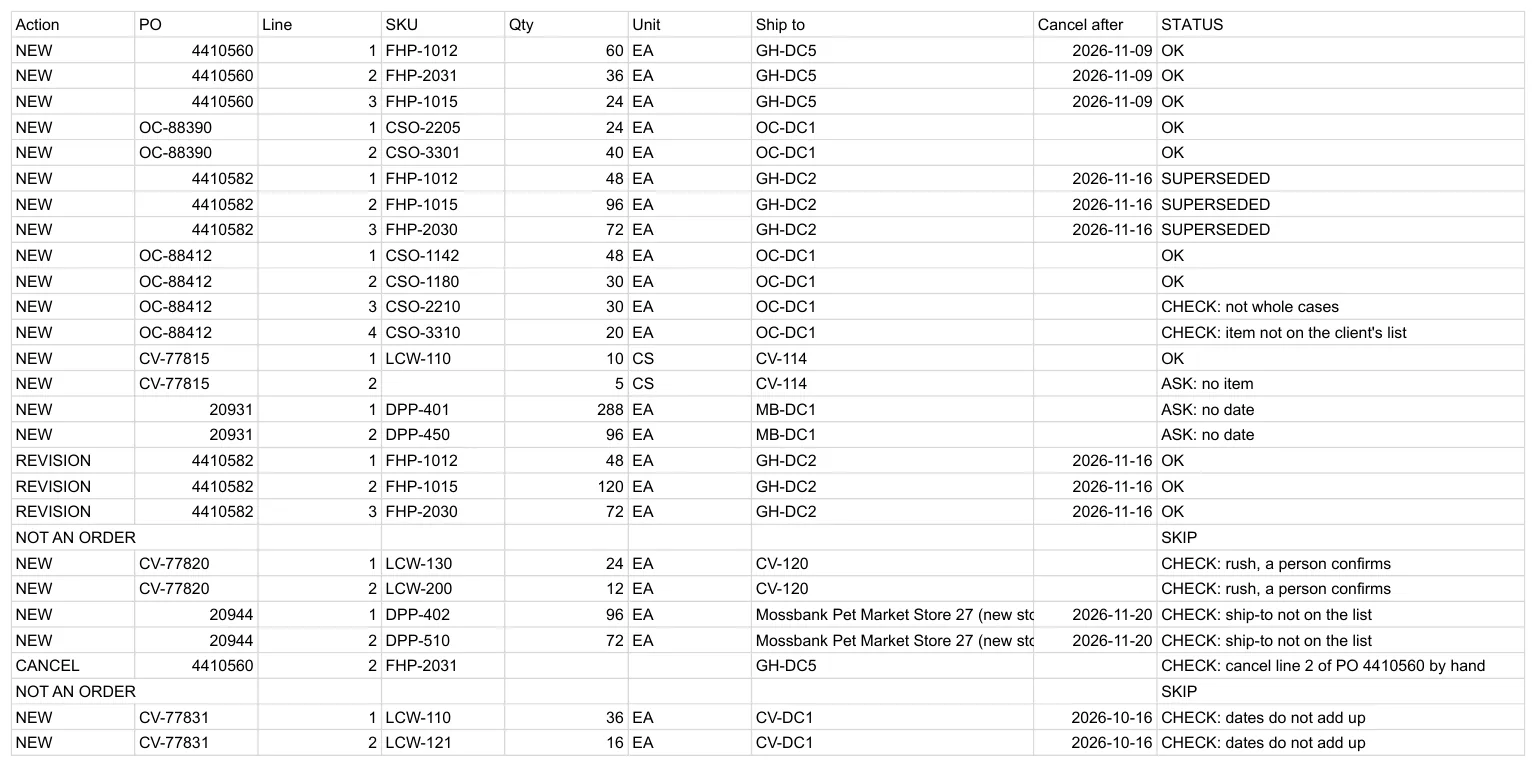
Monday came to 6 lines OK, 9 to a person, 3 back to the client, 3 replaced by a revision, and 2 skipped. Here is what the assistant named on its own across four runs, against what the sheet did.
| The problem line | Claude, three runs | OpenAI | The sheet |
|---|---|---|---|
| Friday's original of a revised PO (3 lines) | Named, named, not named | Not named | SUPERSEDED |
| 30 headlamps, 12 to a case | Not named ("high"), named, not named ("high") | Not named ("high") | CHECK: not whole cases |
| CSO-3310, not on the item list | Named in all three | Not named ("high") | CHECK: item not on the client's list |
| "The fig candle", which fits two items | Named in all three | Named | ASK: no item |
| A fax with no ship or cancel date (2 lines) | Named in all three | Named | ASK: no date |
| A rush in the email (2 lines) | Named in all three | Named | CHECK: rush |
| A new store, on no list (2 lines) | Not named in any | Not named | CHECK: ship-to not on the list |
| A cancel date before the ship window (2 lines) | Named in all three | Not named ("high") | CHECK: dates do not add up |
| Cancel line 2 of last week's PO | Named in all three | Named | CHECK: cancel by hand |
The assistant named 12, 13, 9 and 6 of the 15 lines, and which ones changed from run to run. The sheet stopped all 15 in every run.
Handed the same rules in writing, with both lists and last week's rows, the assistant set each status itself and matched the sheet on 23 of 23 rows, twice. The misses above came from asking it only to read.
Keep them in the sheet anyway: the sheet holds every morning's rows, gives the same answer every time, and costs nothing to run again.
Step 6: Settle Each Stopped Line by Its Reason
| Status | What it means for the order | The fix | How you know it held |
|---|---|---|---|
| CHECK: not whole cases | 30 units of a 12-pack is 2.5 cases: the floor either breaks a case or ships short | Ask the client for 24 or 36, or set the case pack to 1 for a client who orders eaches | The status turns OK once the quantity is a whole case |
| CHECK: item not on the client's list | The client sent a number you do not stock for them | Ask the client; never swap in a near match (Belk's vendor terms forbid it) | The corrected SKU is on Items and the line turns OK |
| ASK: no item | The client's words fit more than one product | Step 7's reply offers both | You type the answer into SKU and the status recomputes |
| ASK: no date | The PO has no ship or cancel date | Step 7's reply asks for both | Same: the dates go in, the line turns OK |
| CHECK: ship-to not on the list | A new store, or a typo in an address | Confirm with the client, add the store to Ship-To, paste its code into the line | The line turns OK |
| CHECK: dates do not add up | A cancel date before the ship window, or a date already past | Ask the client: a retailer may refuse freight shipped outside its window | Corrected dates in the line, status OK |
| CHECK: rush, a person confirms | The client wants it out sooner than the PO says | Check today's dock and labor before anyone promises | Someone writes the decision in Notes |
| CHECK: cancel line 2 of PO 4410560 by hand | A to-do: the line it names is still on the sheet as OK | Change that line on the sheet, and in the WMS if it is already there | The cancelled line is gone from the pick |
Tips from Reddit
Order desks on reading purchase orders with AI
We do this for several customers and have a project saved for each one since they all have slightly different formats.
No, but in a perfect world yes. There would be a manual review instead of manual entry.
Step 7: Let the Assistant Draft the Reply, and Send It Yourself
Copy the ASK rows from the sheet into the same chat and ask for one short email per client, asking only for what is missing: the PO and the line, the client's own words, the products that fit by SKU and name, and no promised ship date.
It returned two emails. The first, as returned:
To: tess@larchmerecandle.example
Subject: PO CV-77815, line 2: which fig candle?

Hi Tess,

PO CV-77815, line 2 reads "fig candle". That fits two items on our list:

- LCW-120 Fig & Black Tea Candle 8 oz
- LCW-121 Fig & Black Tea Candle 14 oz 3-Wick

Which one should line 2 be?

Thank you.
With the Gmail connector on, Claude can save a reply like this as a draft. By default it sends only after you approve each one, Anthropic's help page says, and on business plans the owner decides whether members can skip that.
Keep the approval on. The assistant drafts the reply and fills the sheet; a person sends it.
When the answer comes back, type it into the blank cell. We put LCW-120 into the fig candle's SKU and a ship date and a cancel date into the fax's two lines, and all three ASK lines turned OK without anything else changing.
Step 8: Run the Next Morning on the Same Sheet, Because the Chat Starts Empty
We opened a new chat on Tuesday and sent it three emails:
| The email | What the assistant returned | What the sheet said |
|---|---|---|
| A client resending last week's OC-88390, "in case it got lost" | 2 NEW lines, with "Possible duplicate" in Notes | DUPLICATE, both lines |
| The original of Monday's revised PO 4410582, forwarded again | 3 NEW lines, no revision | DUPLICATE, all three; Monday's revision stays the order |
| A new PO from the pet-food client | 2 NEW lines | OK, both |
The assistant suspected the resend and could not know; the sheet knew, because last week's rows were on it.
Wednesday brought five kinds of trouble the sheet had never seen, with the prompt and the formulas frozen: a unit written as CTN, the "by the 3rd" above, one PO split between two DCs, a phone photo of a paper PO, and an order from a client's employee writing from a personal address.
Every line that had to stop, stopped. The sheet also held the photo's two clean lines, because the shape check then accepted only PDF, spreadsheet and CSV files as a Source. The version in Step 5 accepts images.
The sheet has no check for an unknown sender: the personal-address order stopped only because its row came back short a cell, and whole it would have stopped for the wrong reason. If your clients' staff write from their own addresses, add those addresses to Senders.
Step 9: Time One Real Morning Both Ways Before You Automate It
The sample's stops tell you nothing about your morning: we planted most of them.
| By hand | With the sheet | |
|---|---|---|
| Lines this morning | emails × lines per email | the same |
| Reading and keying | lines × minutes per line | minutes to save and attach the files, plus minutes to read the table |
| Exceptions | found when someone notices | stopped lines × minutes to settle one |
| Checking | whatever you do now | minutes spent opening OK lines against their files |
| Kept apart | about an hour to build; minutes a week to keep Items and Ship-To current |
Say 40 emails with 3 lines each, 2 minutes a line by hand: 240 minutes. With the sheet, say 15 minutes to save and attach, 10 to read the table, a tenth of the lines stopped at 5 minutes each, and 10 minutes of spot checks: 95 minutes.
Every figure in that line is an assumption; put yours in. The one that decides the case is stopped lines times minutes per stopped line, so time it on your worst client first.
Orders out of the inbox come first in our logistics playbook, which ranks freight paperwork on how often it comes up, how closely it follows written rules and what a mistake costs.
Step 10: Let Each New Email Start the Run
The next version takes out the saving and attaching: an automation tool starts on each new email and writes the rows itself.
In n8n that is a Gmail Trigger on Message Received, filtered by a label or a sender, a model step with the prompt from Step 3, and a Google Sheets step. We did not build it; the steps come from n8n's own documentation.
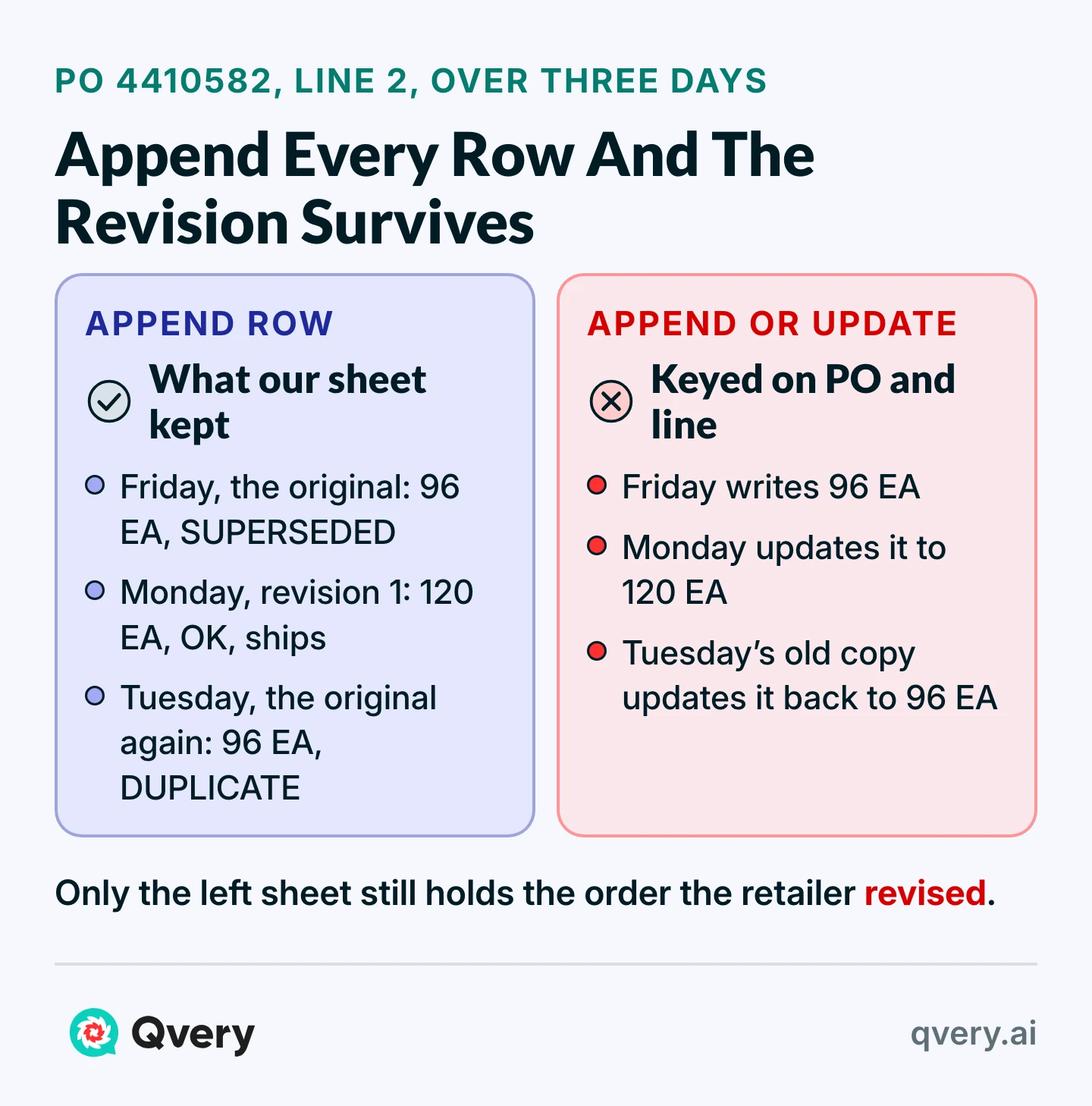
Choose Append Row, not Append or Update Row: keyed on PO and line, an update would have written Tuesday's stale original over Monday's revision. Append every row and let "Already on sheet" and "Replaced by revision" sort them.
What Qvery Builds When Your Clients Email Their Orders
Wired to the inbox, the run still leaves someone refreshing the lists from the WMS and drafting the replies. An agent takes both, to a brief that comes straight from the steps:
- What it reads: the order inbox with its attachments, the item and ship-to lists where your WMS keeps them, and the order sheet.
- What starts it: each new email, on arrival.
- What it checks: the columns in Step 5, plus a sender check, plus anything your worst client has taught you.
- What it writes: the rows, and a drafted reply for every ASK line.
- What a person approves: every reply before it is sent, every CHECK line before it is released, every new ship-to, every cancellation.
We build that agent at Qvery for a single company's order desk, fitted to its own clients and their formats.
It works by itself, on autopilot, as mail lands in the order inbox: it checks each line against the item and ship-to lists in your WMS and writes to the order sheet your desk already keeps, while the desk goes on releasing every line the agent stops.
The build starts at your desk, not in code: we watch how orders get keyed today, which clients send what, and which rules live only in someone's memory.
Within two weeks a first working version reads your own inbox, and we train the people who release its stopped lines and send its replies.
Every week it runs, we tally the keying minutes it took off the desk and the wrong lines it held back before the floor picked them: a broken case, an item the client does not carry, a stale original shipped over its revision, last week's order entered twice.
Your own order emails decide which checks the first version needs.
Start With the Client Who Sends Your Worst Orders
Count a week of stopped lines by client. Give the client at the top of that count its own rows in Items and Ship-To before you write another rule, and add a rule only for a stop you see twice.
Frequently asked questions
How do I automate purchase order entry from emails?
Have an AI assistant read each email and attachment into fixed columns, then paste the rows into a sheet that checks every line against your item list, ship-to list and earlier orders. A person clears what it stops. Later, an automation can append the rows as each email arrives.
Can an AI assistant read purchase orders in any format?
In our sample it read retailer PDFs, a client's own spreadsheet, orders typed into an email and a faxed scan with no text layer: 161 of 161 values as the answer key has them, in one run. Reading is the easy half; deciding what ships is the hard one.
Why can't I rely on the assistant's confidence score?
Because it rates the reading, not the order. Thirty units of an item packed twelve to a case came back "high" in three of four runs, and no run flagged a store on no list. Asked only to read, it named 6 to 13 of the 15 problem lines.
What should an AI order sheet check on every line?
That the client carries the item, the SKU matches the retailer's number, the quantity is whole cases and you ship to the store. Then that the dates add up, the line is not already on the sheet or replaced, a person sees rush words, and the row pasted whole.
What happens when a purchase order is missing the SKU or the quantity?
The assistant leaves the field blank and says why, the sheet marks the line ASK, and the assistant drafts a reply asking only for what is missing. When the client answers, type it into the blank cell and the status recomputes.
Should the assistant correct an item number that looks wrong?
No. It copies every number as printed and puts its doubt in a column of its own, and the sheet stops the line for a person to ask the client. Retail vendor terms, Belk's among them, forbid swapping in a near-match SKU.
What can the checks not catch?
A wrong value that keeps every rule. Of five we put into one morning's rows, among them 72 mugs instead of 48 and another listed store, three came back OK. Open a few OK lines against their source file each morning, and every line read from a fax or a photo.
How do I stop duplicate orders when using AI?
Keep every morning's rows in one sheet and check each new line against client, PO, line and revision. Append every row instead of updating, so a late copy of an old PO cannot overwrite its revision. A chat sees one morning; the sheet sees all of them.
How should revisions and cancellations be handled?
The assistant marks a changed PO as REVISION and each cancelled line as CANCEL. The sheet marks the original lines SUPERSEDED and keeps them for the record, and a cancellation becomes a to-do: a person removes the named line, from the WMS too if it is already there.
Who should approve what the assistant writes?
A person sends every reply, releases every CHECK line, confirms every new ship-to and applies every cancellation. The assistant reads, fills the sheet and drafts. Claude's Gmail connector asks for approval before it sends, by default, and that approval should stay on.
Can AI write orders straight into my ERP?
It can write rows anywhere an import or an automation reaches, but put the checks in between. In our runs its own warnings missed 2 to 9 of the 15 problem lines; the written rules stopped every one. A client that can send EDI should send an X12 850, the purchase order transaction set.
How long does the setup take?
About an hour to build the sheet and its four tabs, then one batch each morning: save and attach the files, paste the table, settle the stopped lines. Keeping the item and ship-to lists current takes minutes a week.
How much time can AI save on order entry?
Time one real morning both ways to know. As an illustration, 40 emails of 3 lines at 2 minutes a line is 240 minutes by hand and about 95 with the sheet, on assumptions you replace with your own. What decides it is stopped lines times minutes per stopped line.
Is it safe to put client purchase orders into an AI assistant?
Use a business plan, where Anthropic does not train on your chats by default, or turn model improvement off on a personal plan. Then check what your clients' agreements say about their POs before the first batch.
When is an AI order sheet not worth building?
When most of your orders already arrive by EDI or through a portal; this is for the ones that come by email. It also leaves out price and credit checks, and it does not connect to your WMS by itself.
What does Qvery build for emailed purchase orders?
An agent shaped around your order desk and your clients' formats: it reads each order email as it lands, writes and checks the rows against your WMS lists, and drafts a reply for anything missing. A first version works within two weeks, and we train the people who release its stops.